- Jul 5, 2025
Creating a New Project Directly with a Text File
- Chaomei Chen
- 1 comment
By default, users create a new project in CiteSpace through an interactive process with the GUI. It is straightforward, but in rare occasions, an alternative approach could be handy. For example, if the browse button is not working for some unknown reason, you can bypass it by directly editing the project list file. Also, if you need to create multiple projects together, this alternative approach could be more efficient.
List Projects
All the necessary information associated with a project is stored in a plain text file called citespace.projects.txt with a path like the following:
C:\Users\YourUserName\citespace.projects.txt
You can view the content of this file within CiteSpace from the menu Projects > List Projects
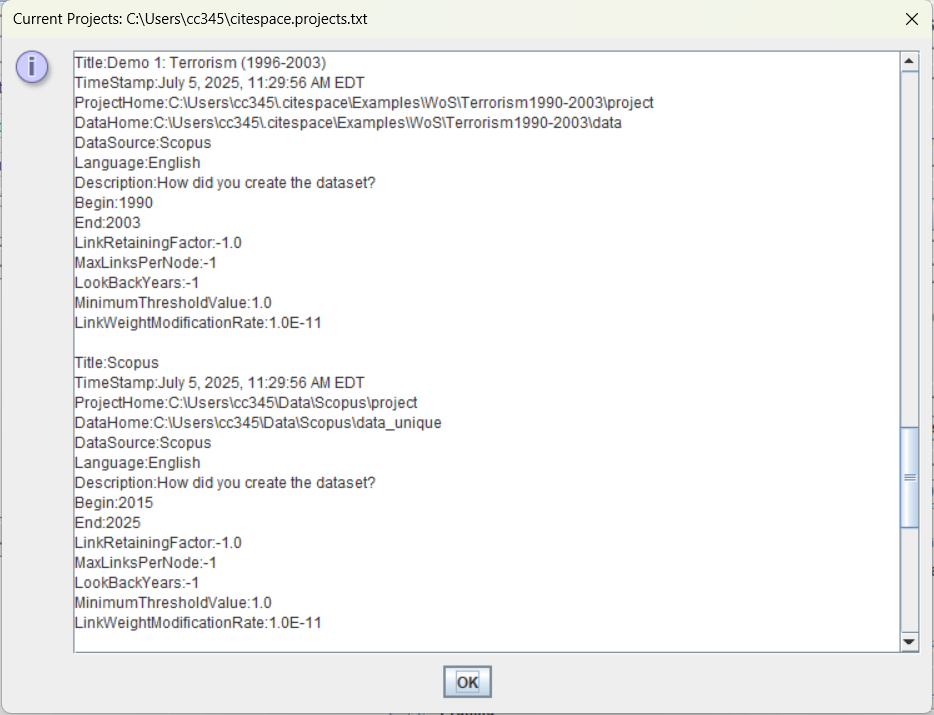
Create or Edit a Project
You can directly edit the text file to create a new project or modify an existing project. Open the citespace.projects.txt file with your favorite text editor, e.g, Notepad++. To create a new project, copy the block of lines of the Demo 1: Terrorism (1996-2023) and paste it to the end of the file. Then edit the fields to define your new project, in particular you should update the following fields for your new project:
Title
ProjectHome
DataHome
Begin
End
You may leave other fields unchanged so that they will be set to default values. In this example, we create a new project based on Demo 1: Terrorism (1996-2003). We will change the project title to Demo 2: Terrorism (1990-2003) and leave other fields untouched.
Title: Demo 2: Terrorism (1990-2003)
Save the file.
Import Projects
Once you have entered the new information of your new project, go back to CiteSpace and select the menu: Projects > Import Projects
The new Demo 2: Terrorism (1990-2003) project will appear on the list.
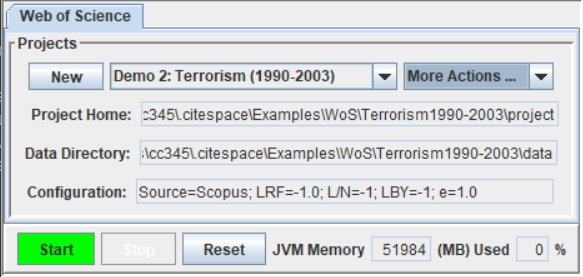
Use the green Start button to start the visual analytic process with CiteSpace.
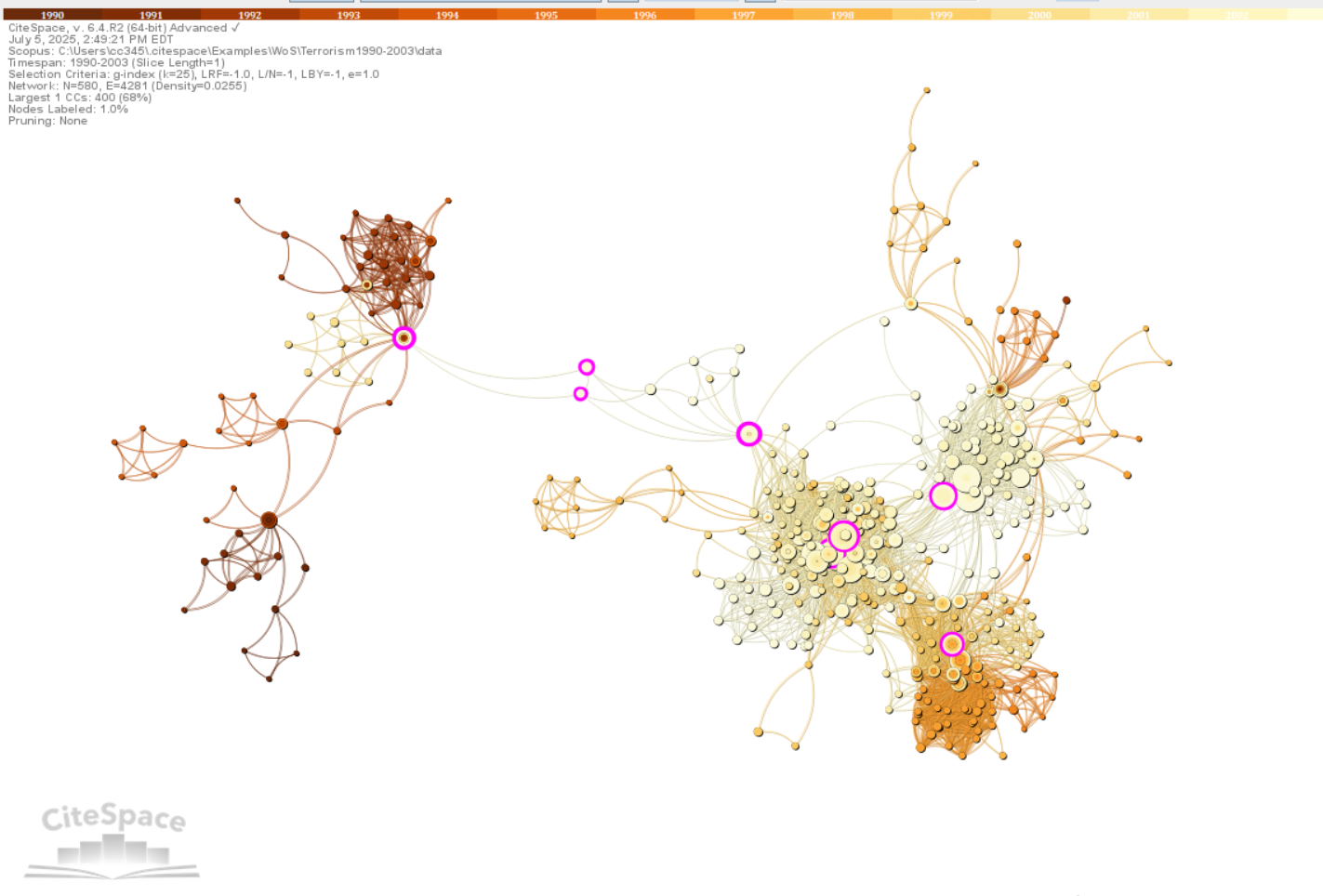
In summary, you can create and modify a project directly in this text file as an alternative way to interacting with the GUI. There is a will, there are two ways.
1 comment

Very interesting, thanks a lot.